

Linux is a family of open-source Unix-like operating systems based on the Linux kernel, a kernel first released on September 17, 1991, by Linus Torvalds. https://en.wikipedia.org/wiki/Linux
Linux: the powerhouse of open-source, flexibility, and community-driven awesomeness.
Kernel: It acts as a bridge between the hardware and software of an operating system. The kernel is the core of the operating system.
Why Linux?
- Customization
- Transparency.
- Widely used in servers, cloud and development.
- Cost: Free and open source.
- Flexibility: Runs on anything from phones to servers.
- Security: Less malware, more control.
Understanding GNU/Linux: A Powerful Open-Source Duo
The GNU/Linux operating system is a combination of two essential components: the Linux kernel and the GNU tools.
- Linux: The kernel, which serves as the core of the OS
- GNU: A recursive acronym for “GNU’s Not Unix”
- Provides essential tools like Bash, GCC, and coreutils
- Advocates for free software and user freedom
Together, the Linux kernel and GNU tools form a complete, free, and open-source OS. Popular examples of GNU/Linux distributions include Ubuntu, Fedora, and Debian.
Linux Distributions (Distros)
A Linux distribution is an operating system built on the Linux kernel, bundled with essential software, tools, and package managers, customized to serve different users like developers, enterprises, cybersecurity professionals, and general users.
- Includes the Linux kernel, system tools, package manager, and optional desktop environment.
- Comes with pre-installed tools, reducing manual setup.
- Built for different purposes like hacking, servers, development, or desktop use.
- Offers flexibility and customization based on user needs.
Common Linux Distribution Families.
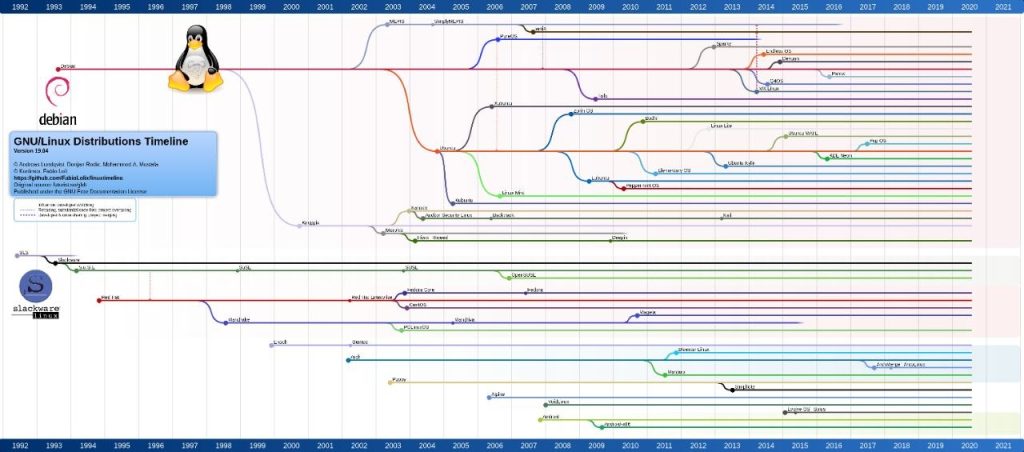
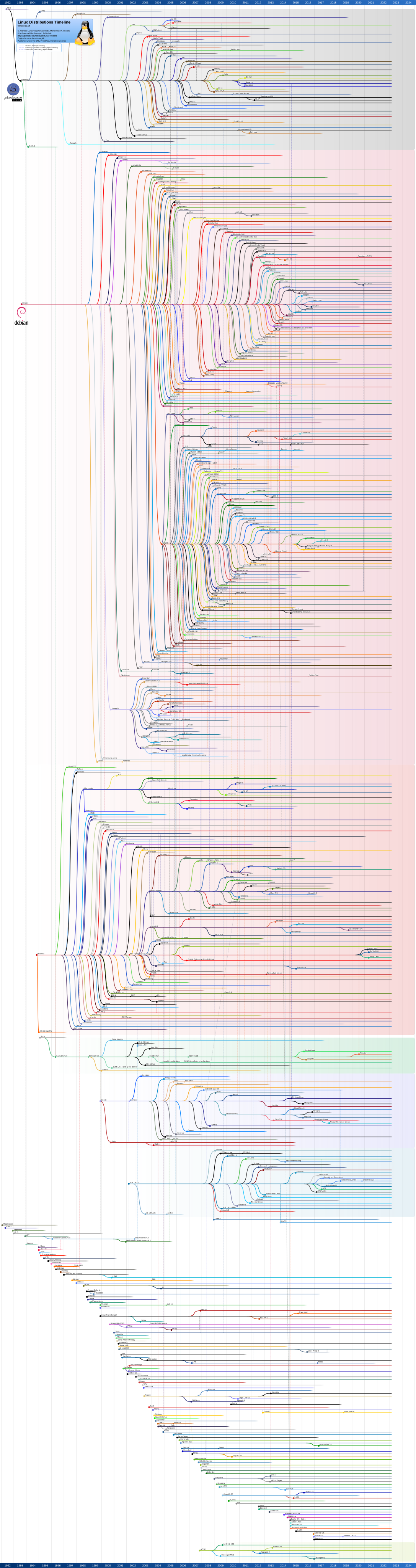
Below is the link to full view of the distribution timeline: https://upload.wikimedia.org/wikipedia/commons/1/1b/Linux_Distribution_Timeline.svg
Linux can be used in two ways:
- Graphical User Interface (GUI): GUI lets you interact with your computer using visuals and clicks, instead of typing commands. Think windows, icons, menus, and pointers. Makes Linux more accessible, especially for new users. The pretty face of Linux, instead of typing commands, you click, drag, and drop. popular GUIs (or desktop environments) include:
– KDE Plasma: Highly customizable, feature-rich
– XFCE: Lightweight, perfect for older PC’s - –GNOME: Sleek, modern look (Ubuntu’s default).
- Graphical User Interface (GUI): GUI lets you interact with your computer using visuals and clicks, instead of typing commands. Think windows, icons, menus, and pointers. Makes Linux more accessible, especially for new users. The pretty face of Linux, instead of typing commands, you click, drag, and drop. popular GUIs (or desktop environments) include:
- Command Line Interface (CLI): A Command Line Interface (CLI) is a text-based interface that allows users to interact with a computer by typing commands and receiving text-based responses. It provides a powerful and efficient way to execute actions, manipulate files, and configure systems.
- Key characteristics of a CLI include:
- – Text-based input and output
– Commands are typed using a keyboard
– Output is displayed in a terminal or console
– Supports scripting and automation
Common uses of CLIs include:
– System administration and configuration
– File management and manipulation
– Software development and debugging
– Network management and troubleshooting.
Some shortcuts:
Shortcut | Description |
Ctrl + A | Jump to beginning of the command line [ writing line ] |
Ctrl + E | Jump to end of the command line [ writing line ] |
Ctrl + U | Clear from the beginning of command line |
Ctrl + K | Clear from the end of command line |
Ctrl + ← | Jump to the beginning of previous word on command line |
Ctrl + → | Jump to the end of next word on command line |
Ctrl + R | Search the history list of commands for pattern |
Linux File System Hierarchy.
Linux follows a hierarchical file system, starting from the root directory /
Directory | Purpose |
/ | Root of everything. ( Starting point) |
/bin | Essential user commands e.q. ls, cp, mv |
/sbin | System admin commands like mount, fsck, ip, reboot. This is for administrators |
/dev | Device files represents disks, USBs, block devices e.q. /dev/null |
/etc | Configuration files Text-based Nginx, Docker, SSH configurations e.q. /etc/passwd |
/home | User personal files,downloads,configs |
/usr | User-installed programs e.q. /usr/bin, usr/lib |
/tmp | Temporary file, short-lived runtime data |
/media | Removable media,USBs and external drives |
/opt | Optional/third-party software |
/var | Variable data(Logs, cache, spool data) |
/run | Runtime process data (PID files and runtime state) |
/sys | Virtual filesystem, Kernel and hardware information |
/proc |
Understanding Commands, Options and Arguments.
Commands in a Command Line Interface (CLI) typically follow a specific structure, consisting of the command itself, options, and arguments.
- Command: The action or program being executed (e.g., ls, cd, mkdir)
- Options: Flags or switches that modify the behavior of the command (e.g., -l, -a, –help)
- Arguments: The targets or inputs for the command (e.g., file names, directories)
The general syntax is command [options] arguments

For example, in the command ls -l /home
– ls is the command to list files
– -l is an option for long format output
– /home is the argument specifying the target directory
Understanding this structure helps in effectively using CLI commands.
Options
Options modify how a command behaves. They usually start with a dash (-) and can be:
– Short options: Single letter (e.g., -l, -a)
– Long options: Words or phrases (e.g., –help, –all)
Examples with ls:
– -l: Long format output
– -a: Show hidden files
– -h: Human-readable file sizes (often used with -l)
– –sort=size: Sort files by size
You can often combine short options: ls -lah does the same as ls -l -a -h.

From the above figure, example sudo -l
Arguments
Arguments are the targets or inputs for a command. They can be:
– Files: rm file.txt
– Directories: cd Documents
– Patterns: ls .pdf (lists PDF files)
– Paths: cp file.txt /home/user/Documents
Arguments are usually specific to the command. For example:
– touch file.txt creates a file named file.txt
– cat file.txt displays contents of file.txt
Some commands take multiple arguments: cp file1.txt file2.txt backup/ copies files to backup/.

Essential Linux Commands for Beginners.
Check Your Current Location
pwd
It shows the full path of the directory you are currently working in.
Navigations
ls — list directory contents.
ls -la — list all files with details.
cd /path — change to path.
cd .. — go to parent directory.
tree — display directories as a tree.
Files and Directories
mkdir dir — create a directory.
rm file or rm-rf— remove a file or folder.
cp src dst — copy a file or directory.
Linux-fundamentals