

In cloud-based organizations, you can use Exchange mail flow (transport rules) to identify and take action on messages that flow through your organization. Mail flow rules are similar to the inbox rules that are available in Outlook and Outlook on the web. The main difference is that the mail flow rules take action on messages while they are in transit, and not after the message is delivered to the mailbox. Mail flow rules contain a richer set of conditions, exceptions, and actions, which provides you with the flexibility to implement many types of messaging policies.
- Mail flow rules, also known as transport rules, allow administrators to manage messages as they transit through Exchange Online by setting conditions and actions to apply policies, such as blocking specific content, adding disclaimers, or rerouting mail. You create them in the Exchange admin center (EAC) under Mail flow → Rules, where you can build rules from scratch, use templates, or copy existing rules. Key aspects include selecting specific conditions and exceptions, defining the actions to take on matching messages, and using message tracing to monitor their effectiveness.
How Mail Flow Rules Work.
- Conditions: You specify criteria for a message to match the rule, such as sender, recipient, subject, or keywords in the message body.
- Exceptions: You can define scenarios where the rule should not apply, even if the conditions are met.
- Actions: You determine what happens to messages that match the rule, such as rejecting them, adding a disclaimer, setting a Spam Confidence Level (SCL), or redirecting the message.
Let’s start the ball rolling; am going to show you how to create one and test it.
Before starting, ensure you have:
- A Microsoft 365 subscription (Business, Enterprise, or similar)
- Admin access to Microsoft 365
Step 1,
Login to your Microsoft 365 admin portal.
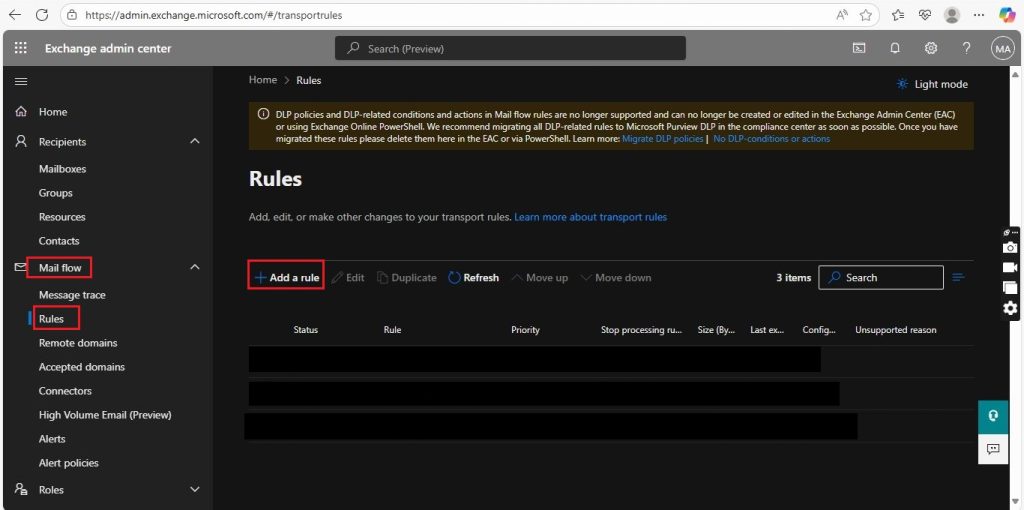
- Navigate to the Exchange Admin Center (EAC).
- Under Mail flow → select Rules.
- Hit +Add a Rule to create a custom rule.
- Define conditions. (E.g. if the subject contains Confidential).
In our test, we will create a new rule.
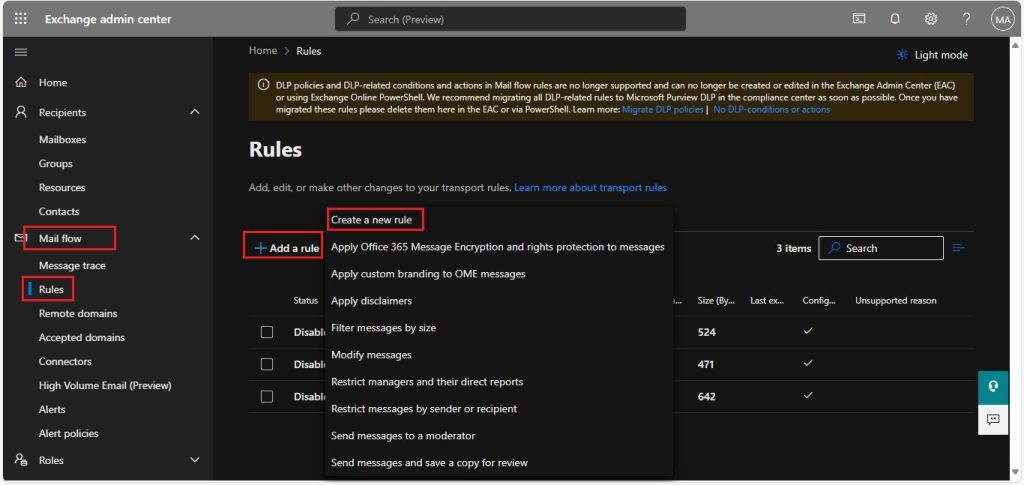
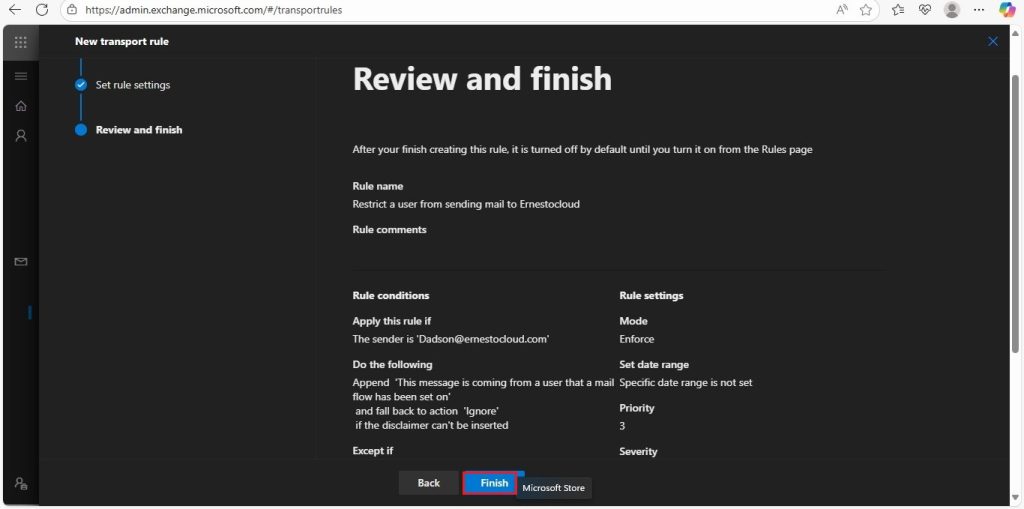
Fill in the set rule conditions:
- Name: Restrict a user from sending a mail to Ernestocloud.
- Apply this rule if: This applies both to the sender, the recipient and also to the other side is this person, internal or external, the subject or body. In our test lab we’re using the sender and in this person. We made modifications later. The sender: dadson@ernestocloud.com
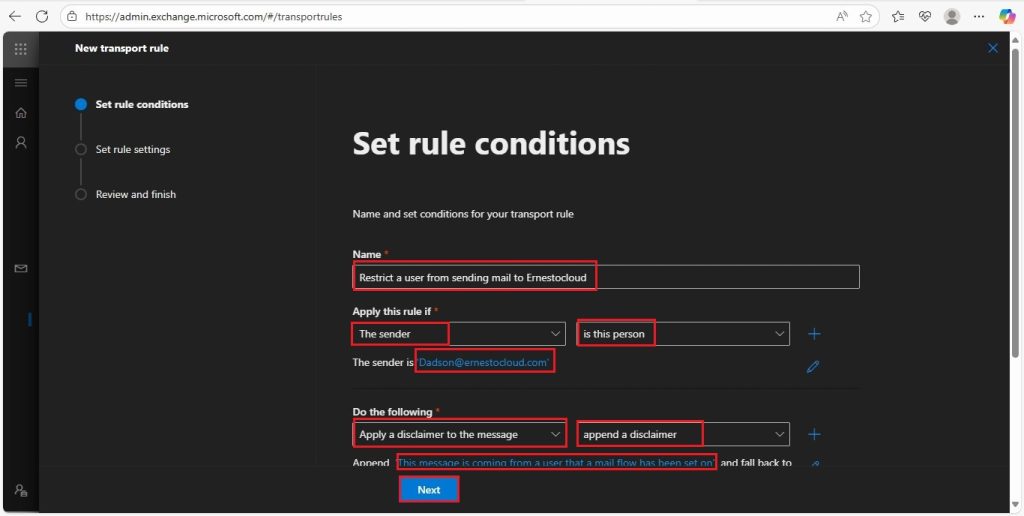
Do the following: Specify what you want to see to dictate what you set in the condition. Apply a disclaimer to the message. And append a disclaimer.
- Append: “This message is coming from a user that a mail flow has been set on”.
- Fall back to action: “Ignore” if the disclaimer can’t be inserted.
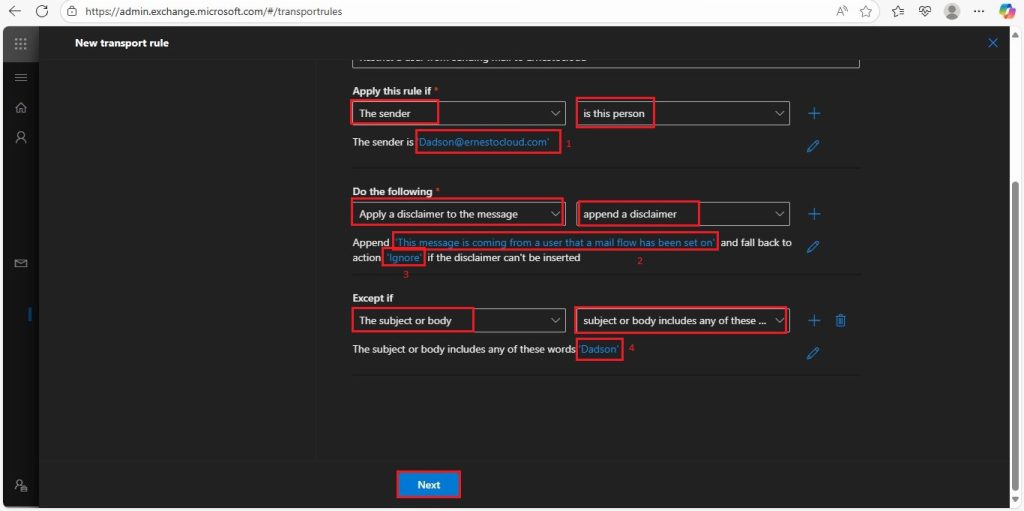
Except if: You can apply the condition depending on your specifications. In our test lab we’re going with the subject or body,rr and the subject or body includes any of these words.
- Dadson.
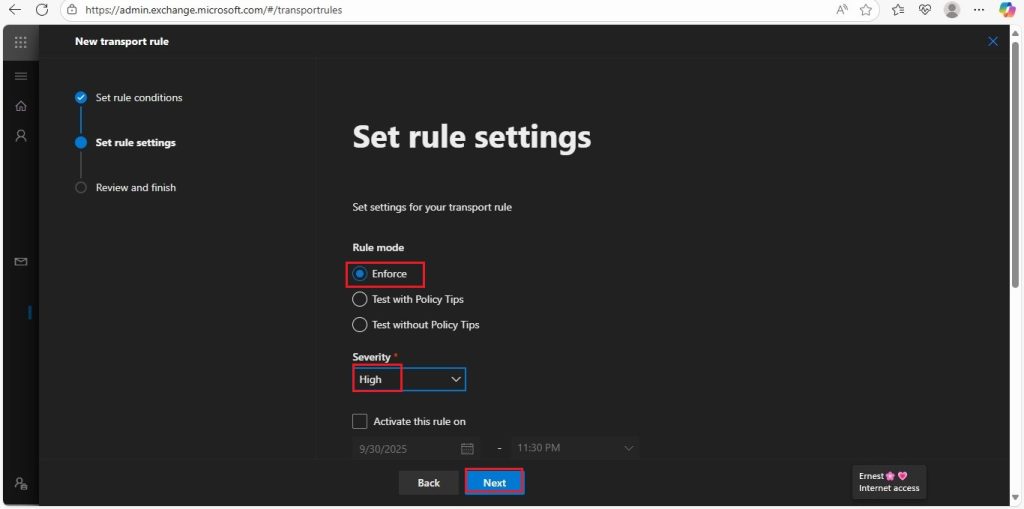
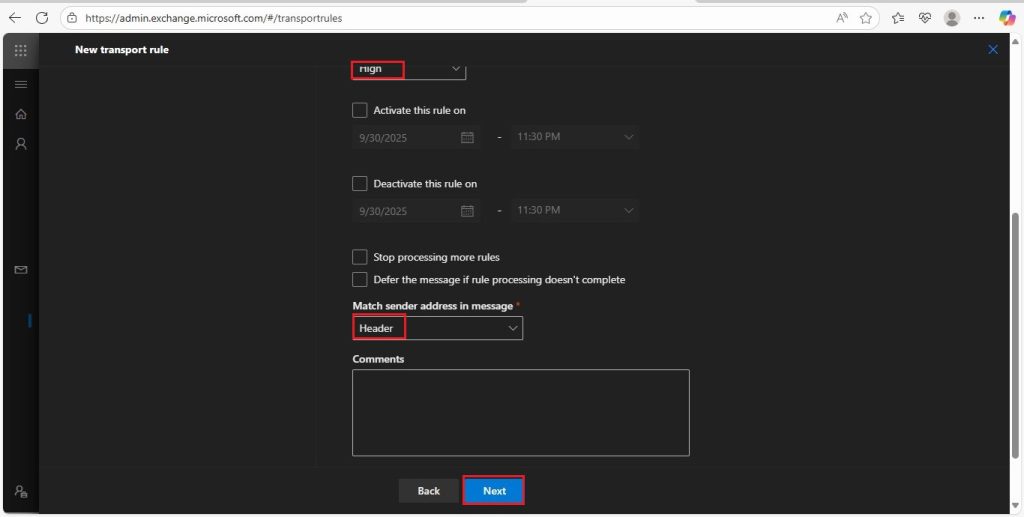
Set rule settings.
- Rule mode: Enforce
- Severity: High.
- Review and Finish: Review it and create.
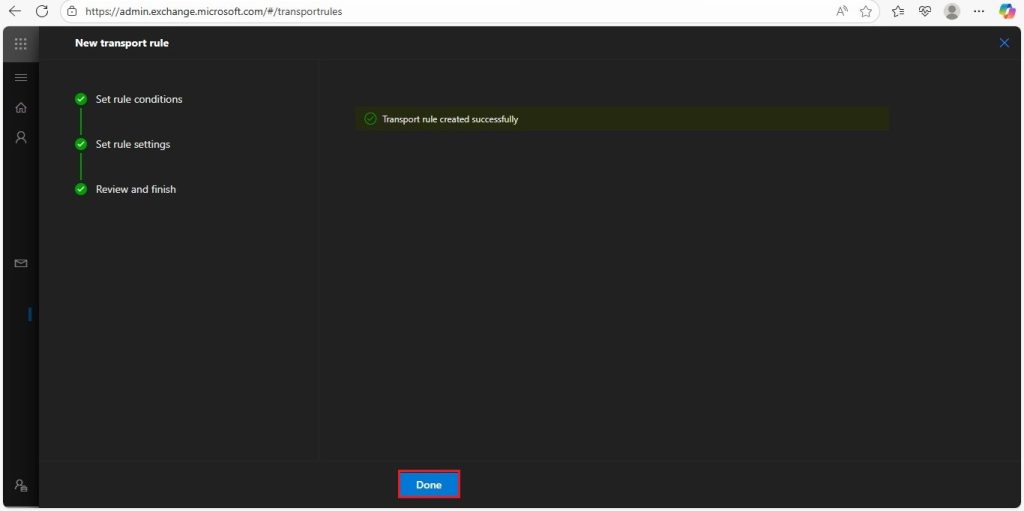
- Proceed and click on done to complete it.
Now let view how our rule looks like.
- Its Disable at first so we will proceed and Enable it and test it as well.
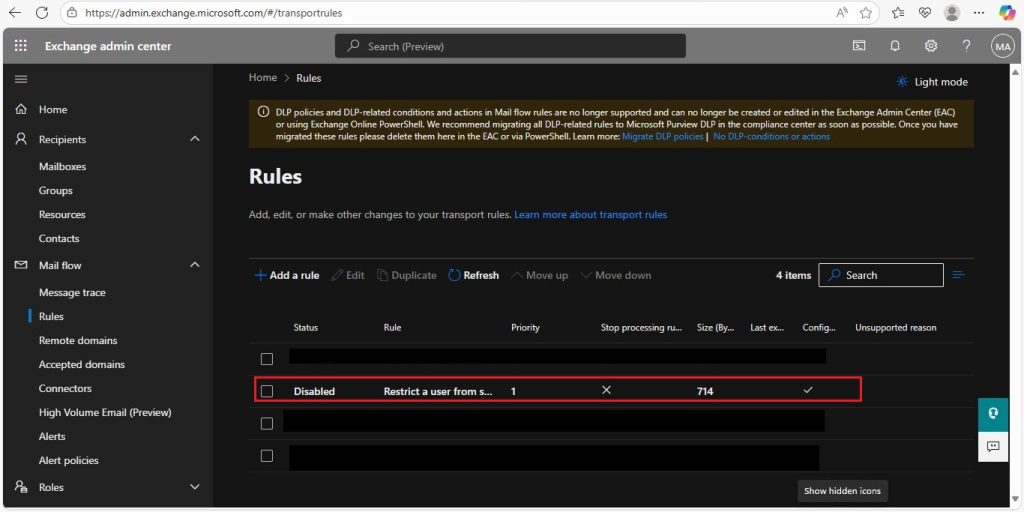
- You can make modification to your rule as well to either the rule conditions or the rule settings. It’s Enabled at this point.

Testing of the Mail flow:
Our two mail addresses are ready.
- Both messages were received.
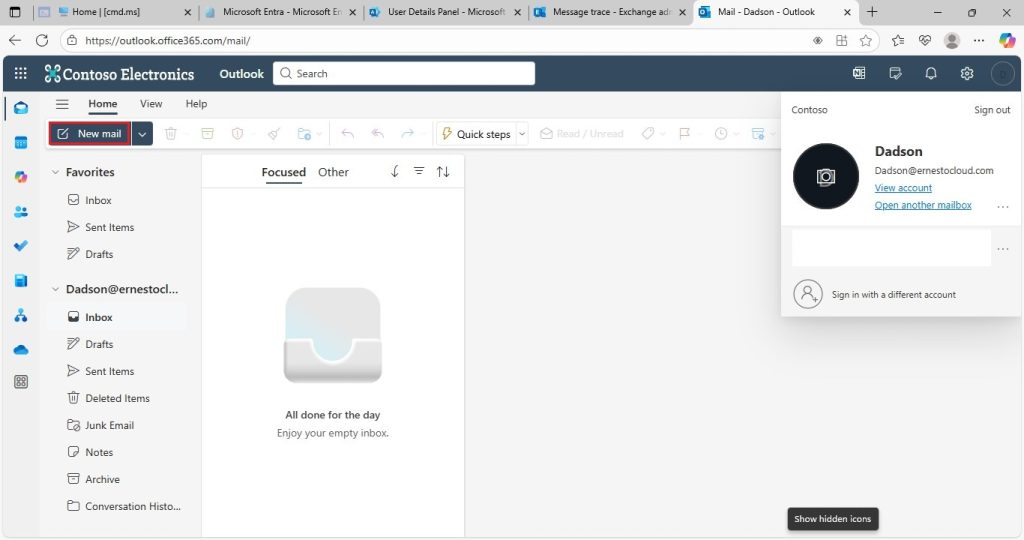
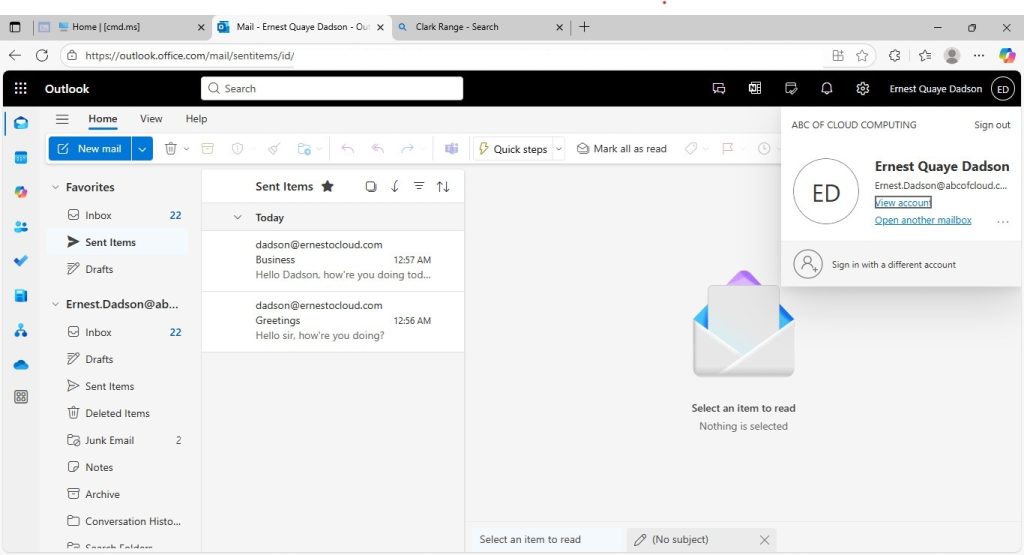
Two mails will be sent:
- From: Ernest.Dadson@abcofcloud.com
- To: Dadson@ernestocloud.com
Message 1:
- Subject: Business
- Compose: Hello Dadson, how’re you doing today?
Message 2:
- Subject: Greetings
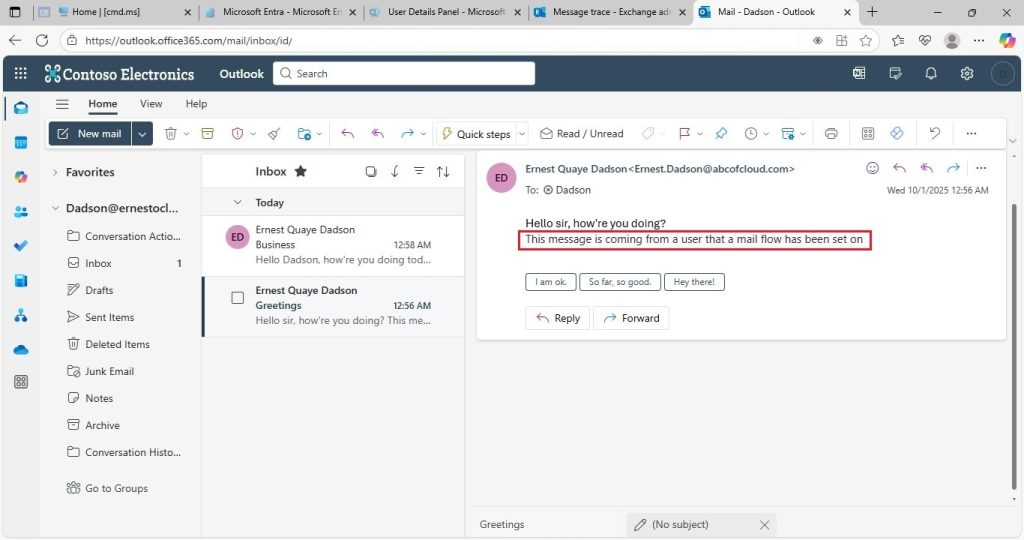
- Compose: Hello sir, how’re you doing?
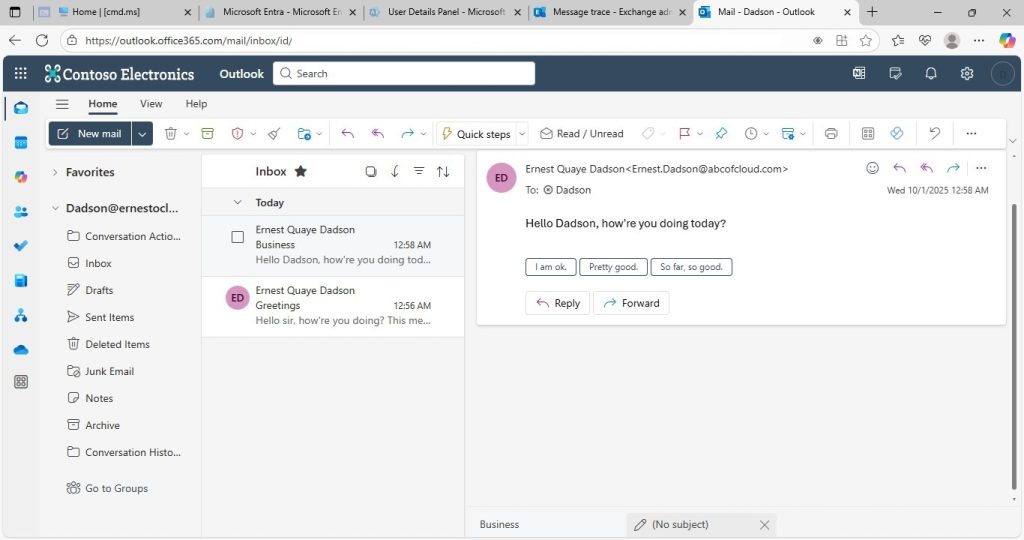
Since the rule apply.
- Apply a disclaimer to the message: This message is coming a user that a mail flow rule has been set on.
- The subject or body should include the word: Dadson.
First message, clearly there is subject or body in there that says Dadson and for that reason no disclaimer message was attached.
Second Message, there is no body that says Dadson and for that reason there is a disclaimer message to alert you that this mail is coming from a user that has mail flow rule set on and you should be
careful.
Exchange Online – Mail flow Rules